
 wikimagazines@gmail.com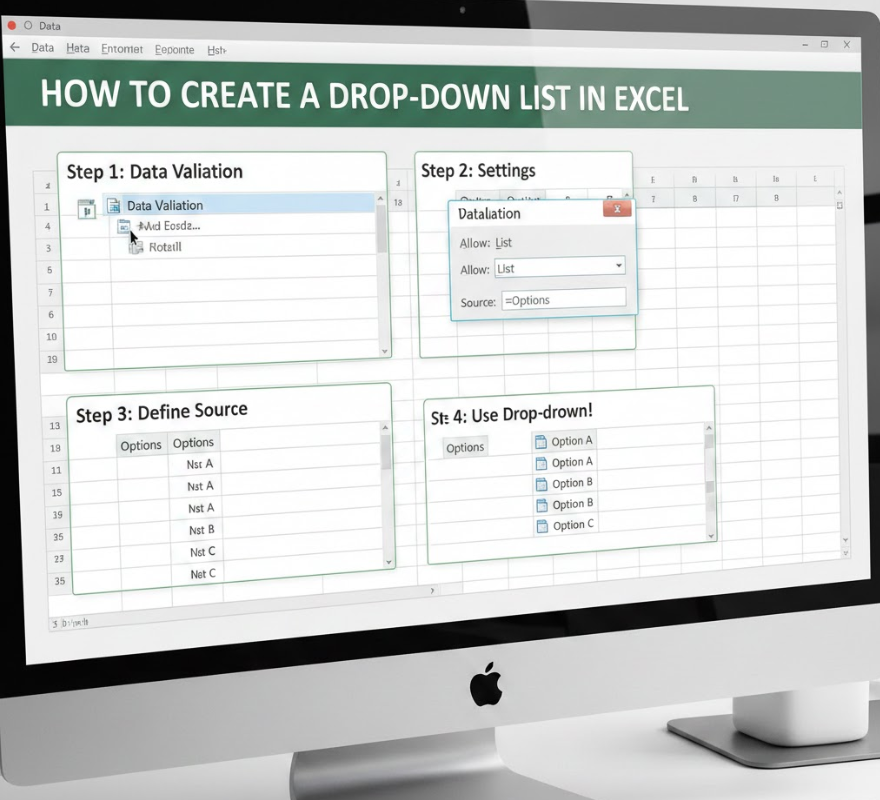
Knowing how to create a drop down list in Excel is an essential skill for anyone looking to improve spreadsheet efficiency and data accuracy. Drop down lists allow users to restrict input to predefined options, reduce errors, and improve consistency in reports, financial models, and project trackers. According to Microsoft statistics, proper use of data validation and drop down lists can reduce input errors by up to 70%, making spreadsheets more reliable for business or personal use.
Whether you’re using Excel 365, Excel for Mac, or older versions like 2013 or 2007, mastering drop down lists enhances workflow, enables dynamic data entry, and simplifies complex tables. This article provides a comprehensive, step-by-step guide to creating drop down lists in various Excel versions, using multiple approaches, shortcuts, and advanced filtering techniques.
How to Create a Drop Down List in an Excel Cell
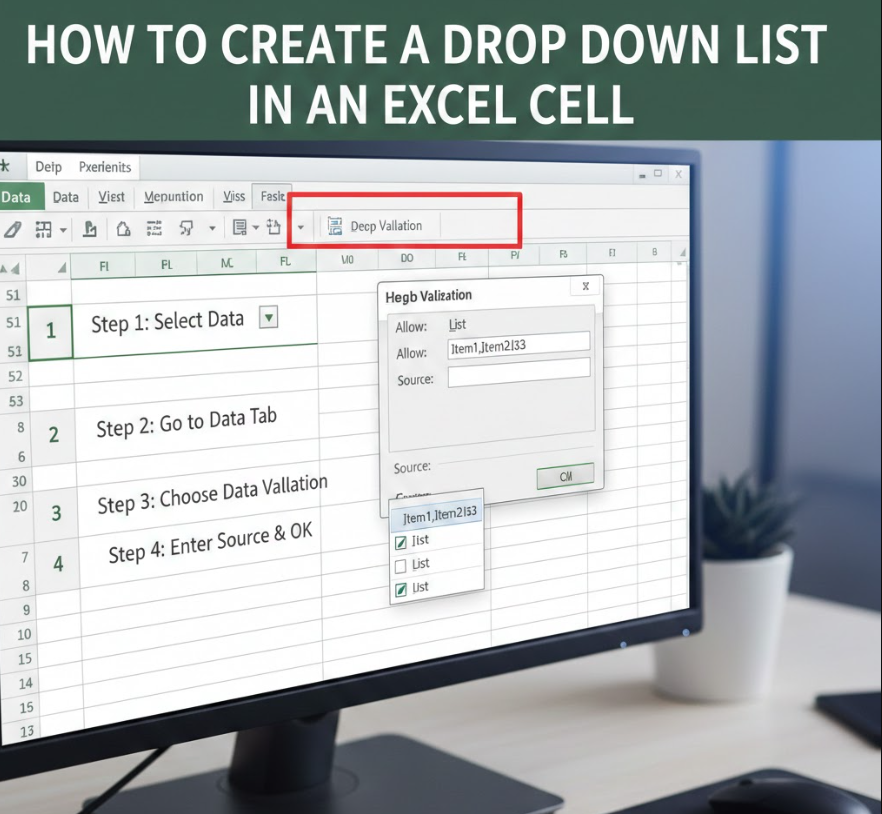
Creating a drop down list in a single cell allows users to select values from a predefined list, improving accuracy.
• Select the cell where you want the drop down.
• Navigate to the “Data” tab in the Excel ribbon.
• Click on “Data Validation” in the Data Tools group.
• Choose “List” from the Allow dropdown menu.
• Enter your items separated by commas or reference a cell range.
• Ensure the “In-cell dropdown” option is checked.
• Optionally, add an input message to guide users.
• Set an error alert to prevent invalid entries.
• Click “OK” to create the drop down.
• Test the cell by clicking the arrow to confirm all options appear correctly.
Also Read This:- How to Descale a Keurig: The Complete Step-by-Step Guide for Every Model
How to Create a Drop Down List in Excel 365
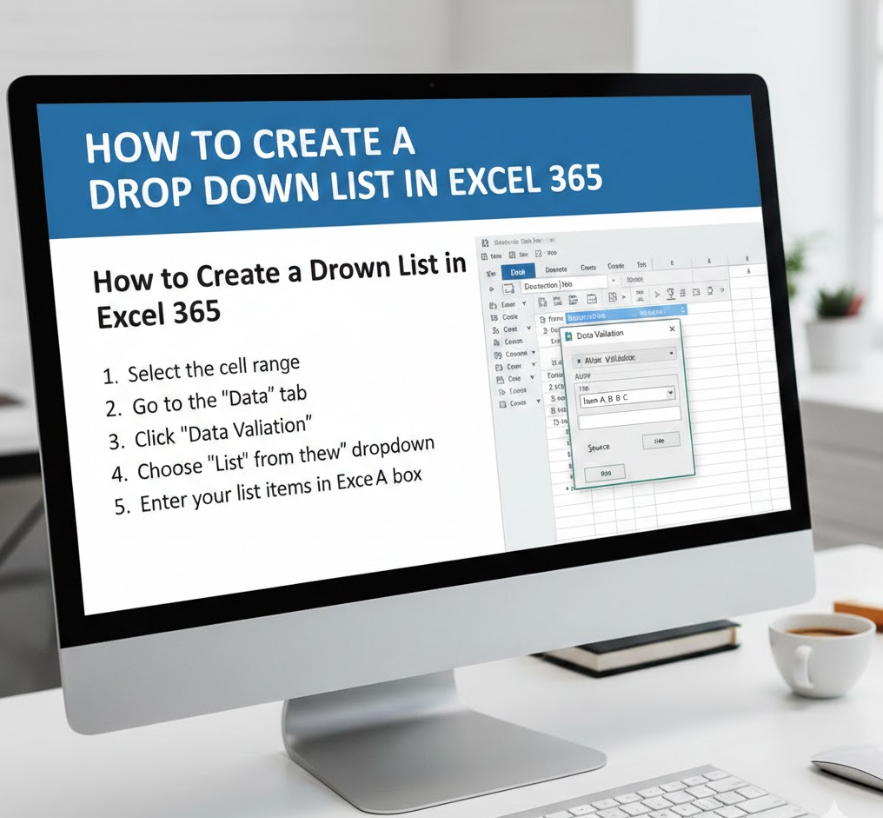
Excel 365 offers cloud-based functionality with dynamic arrays that simplify list creation.
• Open your Excel 365 workbook and select a cell or range.
• Go to the Data tab and select Data Validation.
• Choose “List” and input items manually or use a dynamic range.
• Use formulas such as UNIQUE to automatically generate list options from a table.
• Enable the “In-cell dropdown” for user convenience.
• Apply input messages to guide users on proper selection.
• Use error alerts to prevent incorrect entries.
• Copy drop down lists across multiple cells for consistency.
• Take advantage of Excel 365’s dynamic referencing for automatic updates.
• Test the drop down to ensure it responds correctly to changes in source data.
Also Read This:- How to Cut a Pomegranate: The Complete Step-by-Step Guide for Perfect Seeds Every Time
How to Create a Drop Down List in Excel 2013
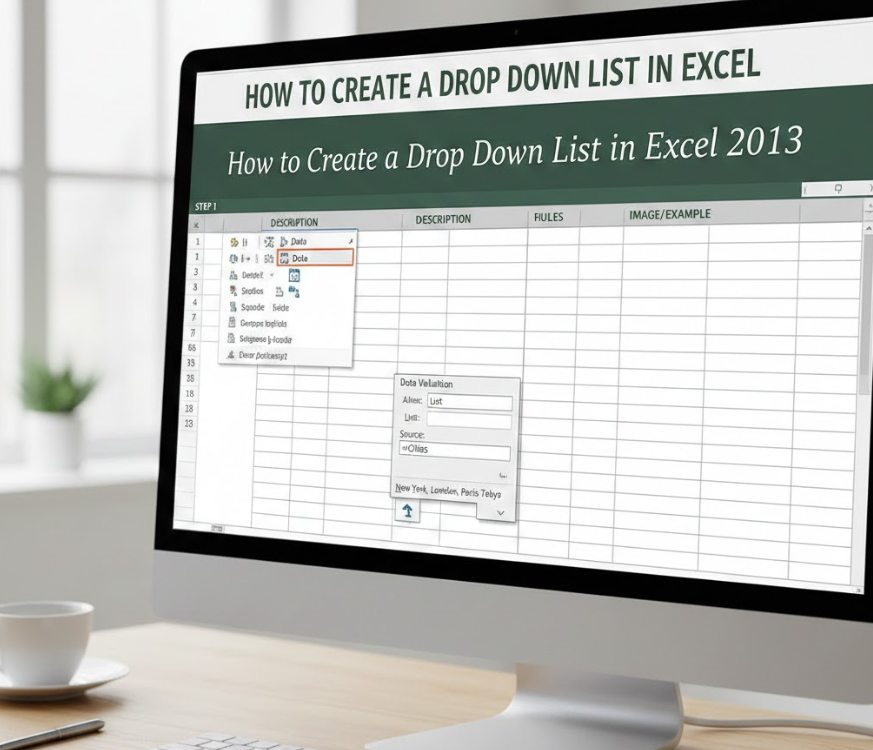
Excel 2013 supports drop down lists with traditional data validation tools.
• Highlight the target cell or column.
• Navigate to Data → Data Validation.
• Select “List” as the validation type.
• Manually type options separated by commas or reference a named range.
• Check “In-cell dropdown” to make the arrow visible.
• Add input messages to instruct users.
• Set an error alert to maintain data integrity.
• Use dynamic ranges if the list is expected to grow.
• Copy validation rules across similar cells for consistency.
• Confirm functionality by selecting values from the drop down menu.
Also Read This:- How to Breed Villagers in Minecraft: Complete 2026 Guide
How to Create a Drop Down List in Excel on Mac
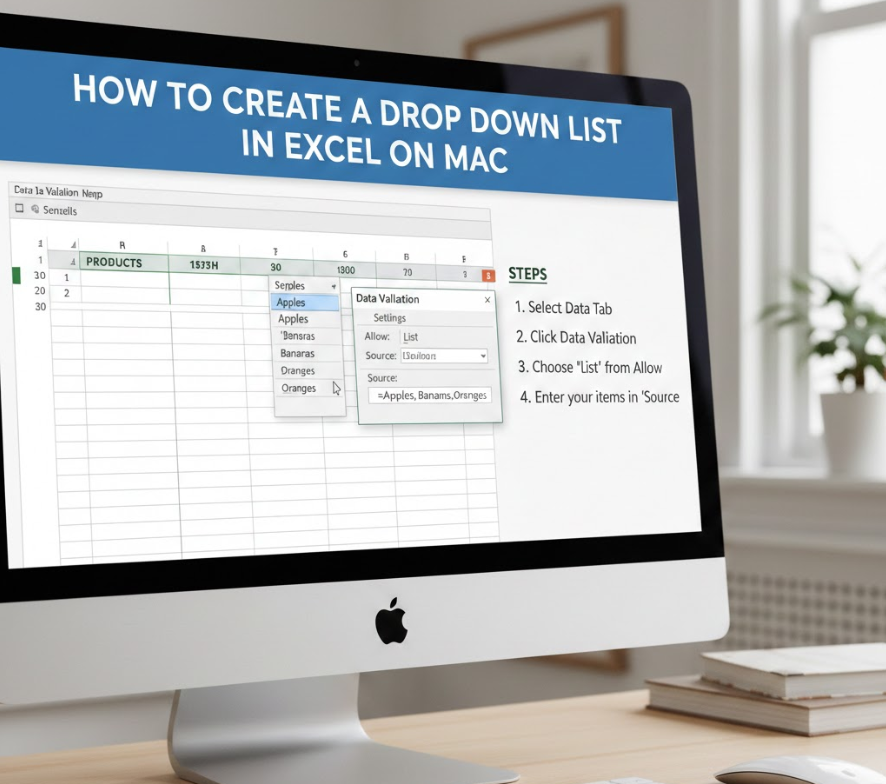
Excel for Mac uses similar features but with slight interface differences.
• Select your target cell for the drop down.
• Click on Data → Validation in the menu bar.
• Choose “List” as the validation type.
• Enter your options manually or select a range from the sheet.
• Ensure the “Show drop down list in cell” option is checked.
• Optionally, add input messages to help users.
• Set error alerts to prevent invalid entries.
• Apply named ranges for dynamic updates.
• Test the drop down to confirm it works on Mac.
• Copy the drop down to other cells if needed.
Also Read This:- How to Tame a Silver Fox: A Complete Guide
How to Create a Drop Down List in Excel Column
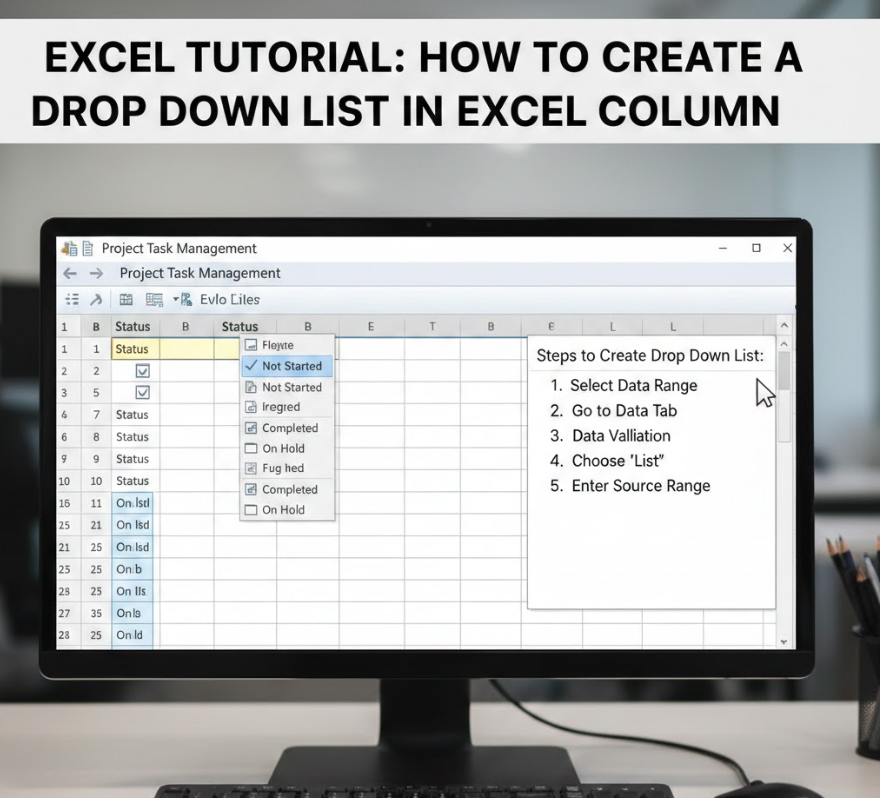
Creating a drop down list for an entire column standardizes input across multiple rows.
• Highlight the entire column or desired cell range.
• Navigate to Data → Data Validation.
• Select “List” as validation type.
• Use a named range for consistent reference.
• Check the “In-cell dropdown” option.
• Optionally, create input messages to guide data entry.
• Apply error alerts to prevent incorrect entries.
• Use absolute references to prevent formula shifting.
• Copy the validation to new rows if needed.
• Test the column by selecting multiple cells to confirm dropdown functionality.
Also Read This:- How to Attract Birds: A Complete Guide to Bringing More Birds to Your Yard, Feeders, and Garden
How to Create a Drop Down List in Excel Yes or No
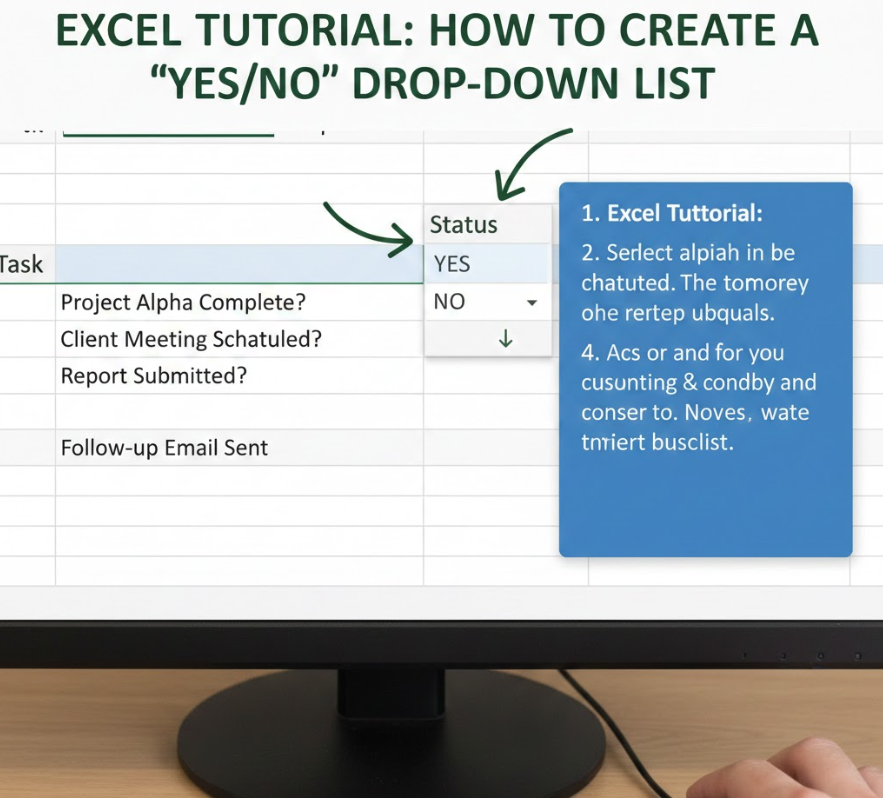
Yes/No lists are common for binary choices like approval or completion status.
• Select the target cell or range.
• Go to Data → Data Validation.
• Choose “List” as the validation type.
• Type “Yes,No” in the source field separated by a comma.
• Ensure “In-cell dropdown” is checked.
• Optional: add input messages to explain the purpose.
• Add error alerts for invalid entries.
• Apply to multiple rows for consistency.
• Format the cell for center alignment for visual clarity.
• Test the drop down to ensure only Yes or No is selectable.
Also Read This:- How to Change a Tire: A Complete Step-by-Step Guide for Every Vehicle
How to Create a Drop Down List in Excel Online
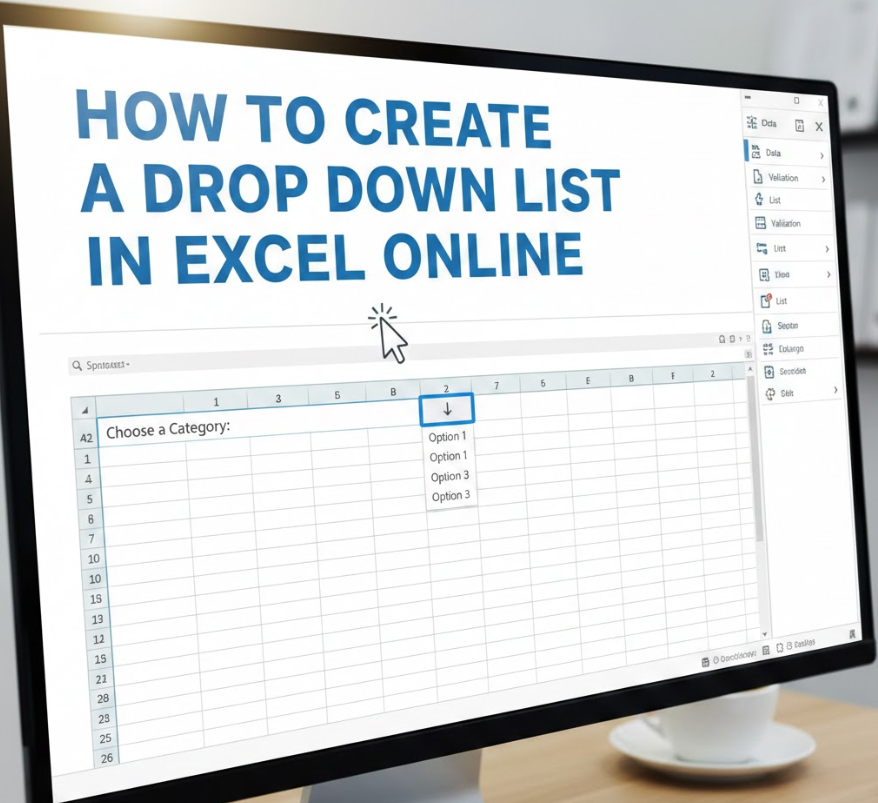
Excel Online supports drop down lists through web interface tools.
• Select the cell or range.
• Navigate to Data → Data Validation in the online ribbon.
• Choose “List” for validation type.
• Enter options manually or reference an online table range.
• Enable the “In-cell dropdown” for user selection.
• Use input messages to guide users.
• Apply error alerts to maintain correct entries.
• Dynamic ranges can be used if supported by online Excel tables.
• Copy validation rules across similar cells.
• Test the drop down in multiple browser sessions for consistency.
Also Read This:- Interior Design Trends: Transform Your Home with Style and Innovation
How to Create a Drop Down List in Excel to Filter
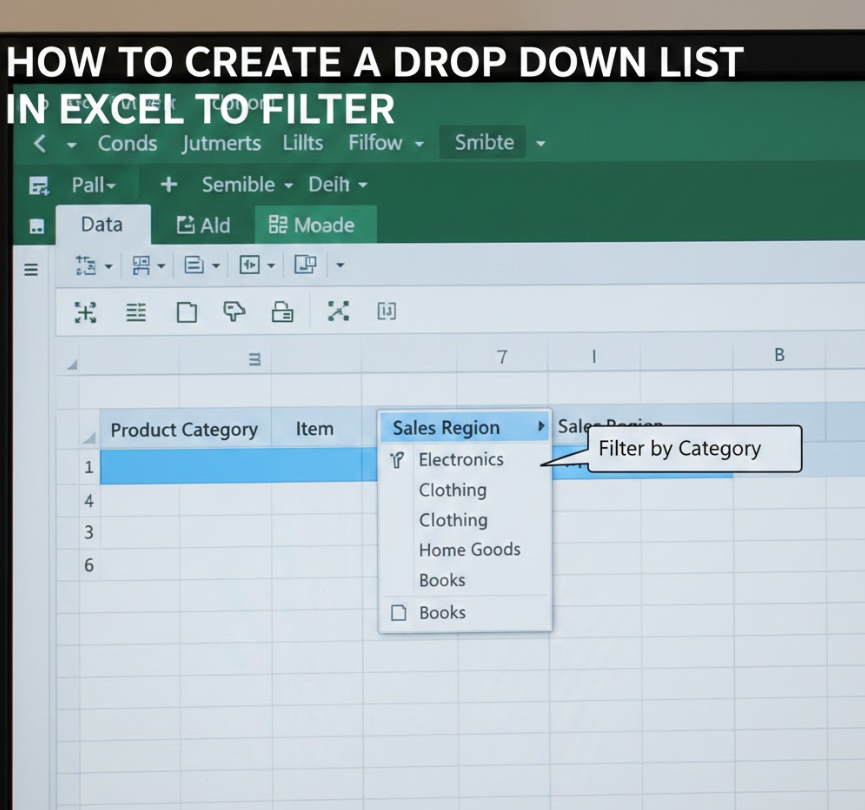
Drop down lists can be integrated with filters for dynamic spreadsheet analysis.
• Select a column containing your data.
• Use Data → Filter to enable filtering.
• Add a drop down list with data validation for categories.
• Link drop down selection to filter criteria using Excel formulas.
• Ensure source data range matches filter range.
• Update the list dynamically if data changes.
• Apply conditional formatting for visual cues.
• Test filter functionality with multiple selections.
• Copy list validation for additional filter columns.
• Use pivot tables in combination for advanced filtering.
Also Read This:- Virtual Meeting Etiquette: The Complete Guide for Professionals
How to Create a Drop Down List in Excel Table
Using Excel Tables enhances drop down functionality across structured data.
• Convert your data range into a table (Insert → Table).
• Apply data validation to the table column.
• Choose “List” and select a named range or table column for source.
• Enable “In-cell dropdown” for each row automatically.
• Add input messages to guide users.
• Apply error alerts for data integrity.
• Table formatting ensures drop down is applied to new rows automatically.
• Use structured references for dynamic source ranges.
• Test by adding new rows to confirm drop down propagation.
• Combine with formulas for conditional data display.
Conclusion: Mastering How to Create a Drop Down List in Excel
Learning how to create a drop down list in Excel increases spreadsheet efficiency, reduces data entry errors, and enhances user experience. Whether you use Excel 365, Mac, 2013, 2022, or online versions, the principles remain consistent: define your data, use Data Validation, and test thoroughly. Drop down lists are essential tools for creating professional, dynamic, and error-free spreadsheets.
Frequently Asked Questions
Can I update my drop down list dynamically?
Yes, use named ranges or tables to automatically include new entries.
Can drop down lists include formulas?
Yes, formulas like UNIQUE or FILTER can generate dynamic lists in Excel 365.
Do drop down lists work in Excel Online and Mac versions?
Yes, though some features may have minor interface differences.
More Information Go And Visit:- Wiki Magazines