 wikimagazines@gmail.com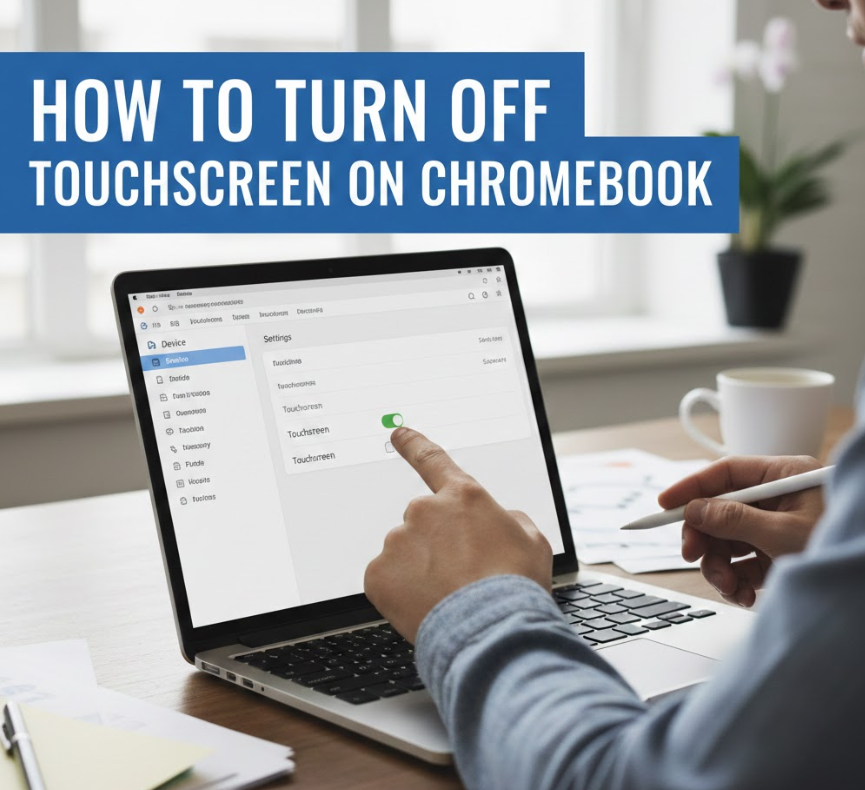
Chromebooks are popular for their speed, simplicity, and touch-enabled convenience. However, there are many situations where users actively search for how to turn off touchscreen on Chromebook. Whether you’re experiencing accidental touches, screen glitches, child misuse, accessibility needs, or simply prefer keyboard and mouse input, disabling the touchscreen can significantly improve your Chromebook experience.
This comprehensive guide explains all safe and effective methods to disable the Chromebook touchscreen, including keyboard shortcuts, Chrome flags, Developer Mode commands, and accessibility settings. It is written with real-world experience, technical accuracy, and user safety in mind—so you can confidently make changes without harming your device.
Why You Might Want to Turn Off Touchscreen on Chromebook
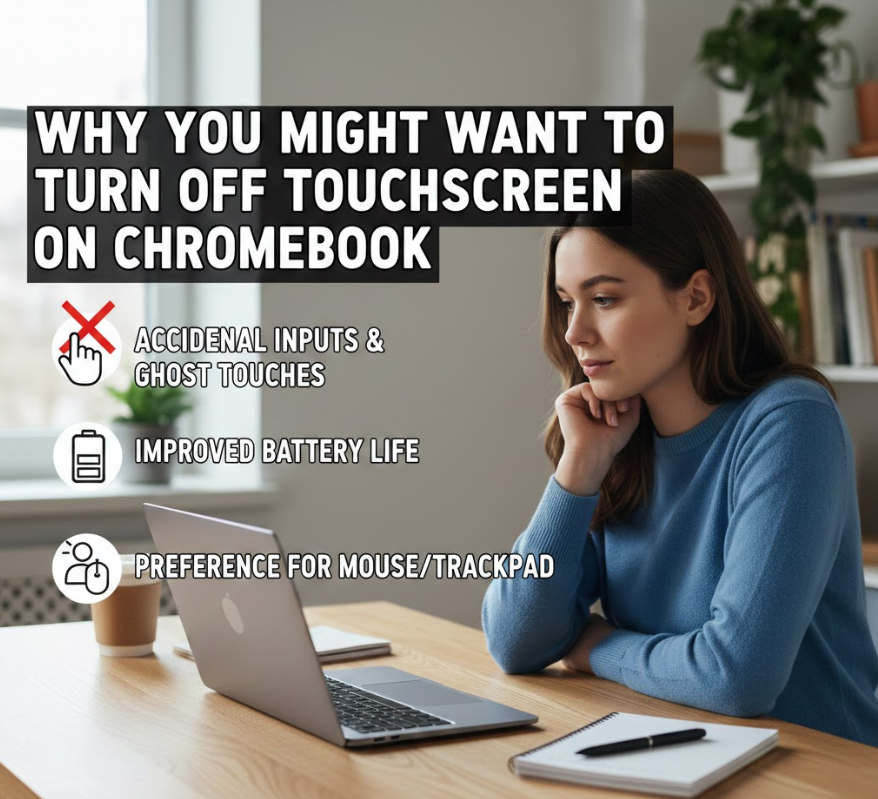
Touchscreens are useful, but they are not ideal for everyone. Understanding why users disable the touchscreen helps you choose the safest and most appropriate method.
Detailed Explanation
Disabling the touchscreen is often a functional decision, not a technical problem. Many Chromebook users—students, teachers, developers, and professionals—find touchscreen input disruptive rather than helpful.
• Accidental Touch Input
When typing, resting palms near the screen can trigger unintended clicks or scrolling. This is common in classrooms and work environments and can seriously reduce productivity.
• Screen Glitches or Ghost Touches
Aging hardware or damaged digitizers may cause phantom touches. Turning off the touchscreen prevents unusable behavior without replacing the screen.
• Using External Keyboard and Mouse
Chromebook users working in desk setups often don’t need touchscreen functionality and prefer precision input devices.
• Child or Classroom Control
Teachers and parents often disable touchscreens to prevent distractions or accidental settings changes.
• Accessibility Preferences
Some users with motor or sensory sensitivities find touchscreens uncomfortable or difficult to control.
• Battery Optimization
Disabling touchscreen input can slightly reduce background hardware polling, improving battery efficiency over time.
Also Read This:- How to Find Archived Emails in Gmail: Complete Guide
How to Turn Off Touchscreen on Chromebook Using Keyboard Shortcut
The fastest and safest way to disable the touchscreen is by using a built-in Chromebook shortcut.
Detailed Explanation
ChromeOS includes a hidden accessibility shortcut designed for developers and power users. This method does not require Developer Mode and is fully reversible.
• Keyboard Shortcut Method
Press:
Search + Shift + T
This instantly toggles the touchscreen off or back on.
• No System Modification
This method does not change system files or security settings, making it completely safe.
• Instant Feedback
Touch input stops immediately—no restart required.
• Best for Temporary Use
Ideal for testing, classroom sessions, or short-term needs.
• Works on Most Modern Chromebooks
Supported on ChromeOS versions where accessibility shortcuts are enabled.
• Easy to Re-Enable
Use the same shortcut to restore touchscreen functionality.
Also Read This:- How to Endorse a Check: Complete Guide for 2026
How to Turn Off Touchscreen on Chromebook Using Chrome Flags
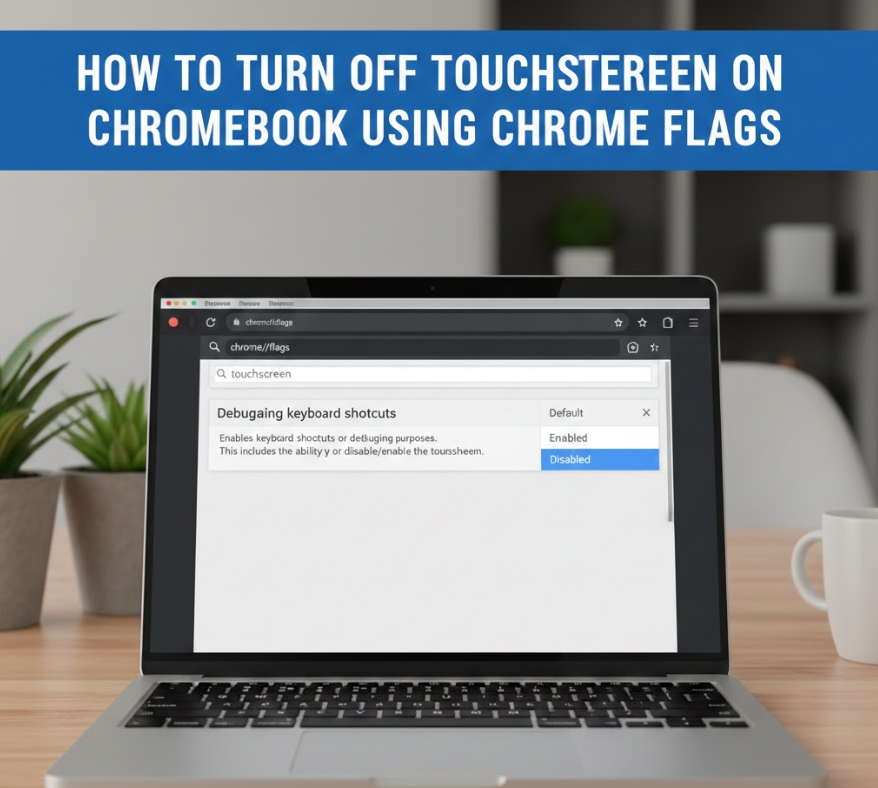
Chrome flags allow advanced users to control experimental features.
Detailed Explanation
Chrome flags provide deeper system control without entering Developer Mode, but they should be used carefully.
• Access Chrome Flags
Type chrome://flags into the address bar.
• Search for Touchscreen Settings
Look for flags related to “touch UI” or “touch events.”
• Disable Touch Features
Set applicable flags to “Disabled.”
• Restart Chromebook
Changes only take effect after reboot.
• Moderate Risk Level
Flags are experimental; updates may reset settings.
• Good for Semi-Permanent Use
Suitable for users who want control without Developer Mode.
Also Read This:- How to Create a Drop Down List in Excel: Step-by-Step Guide for Every Version
How to Turn Off Touchscreen on Chromebook Using Developer Mode
Developer Mode offers the most permanent and powerful method to disable the touchscreen.
Detailed Explanation
This method is recommended only for advanced users who understand ChromeOS security trade-offs.
• Enable Developer Mode
This process wipes local data, so backups are essential.
• Access Crosh Terminal
Press Ctrl + Alt + T, then type shell.
• Disable Touchscreen Driver
Use system commands to disable the touchscreen input device.
• Highly Effective
Completely stops touchscreen functionality at the system level.
• Security Trade-Off
Developer Mode disables verified boot.
• Best for Advanced Users Only
Ideal for developers, IT admins, or kiosk setups.
Also Read This:- How to Descale a Keurig: The Complete Step-by-Step Guide for Every Model
How to Turn Off Touchscreen on Chromebook Using Accessibility Settings
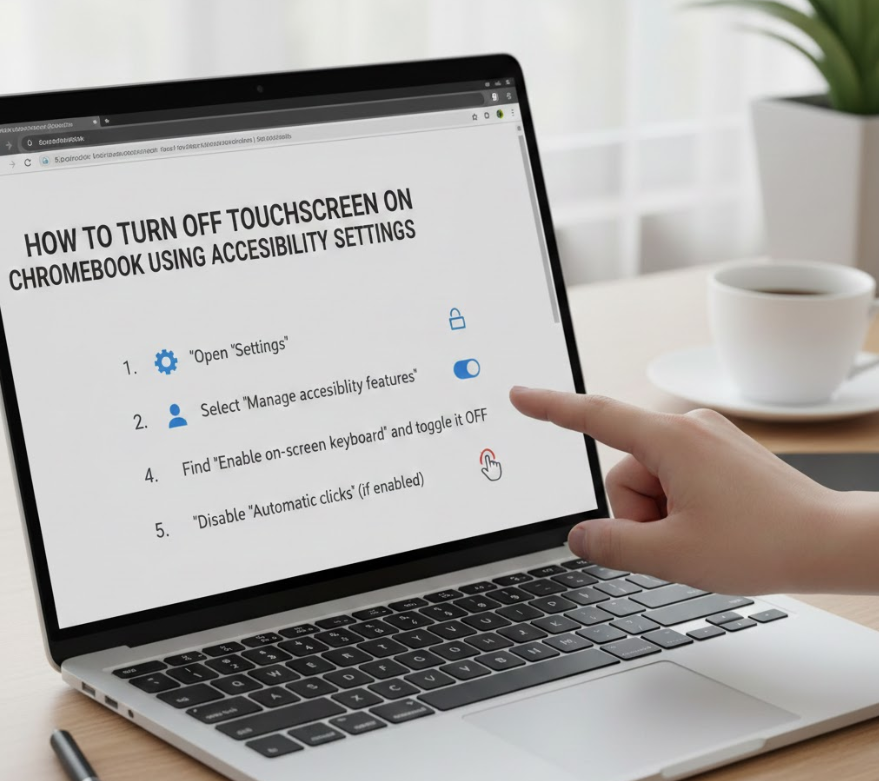
Accessibility settings provide user-friendly control for touch behavior.
Detailed Explanation
While ChromeOS doesn’t offer a direct “off” switch, accessibility tools can limit touch interactions.
• Open Accessibility Settings
Go to Settings → Advanced → Accessibility.
• Enable Mouse and Keyboard Features
Reduce reliance on touch input.
• Disable Tap-to-Click Alternatives
Prevent accidental interactions.
• Useful for Students and Seniors
Makes Chromebook easier to control.
• No System Risk
Safe for all users.
• Partial Solution
Touchscreen still exists but is less disruptive.
Also Read This:- How to Cut a Pomegranate: The Complete Step-by-Step Guide for Perfect Seeds Every Time
Chromebook Models That Support Touchscreen Disabling
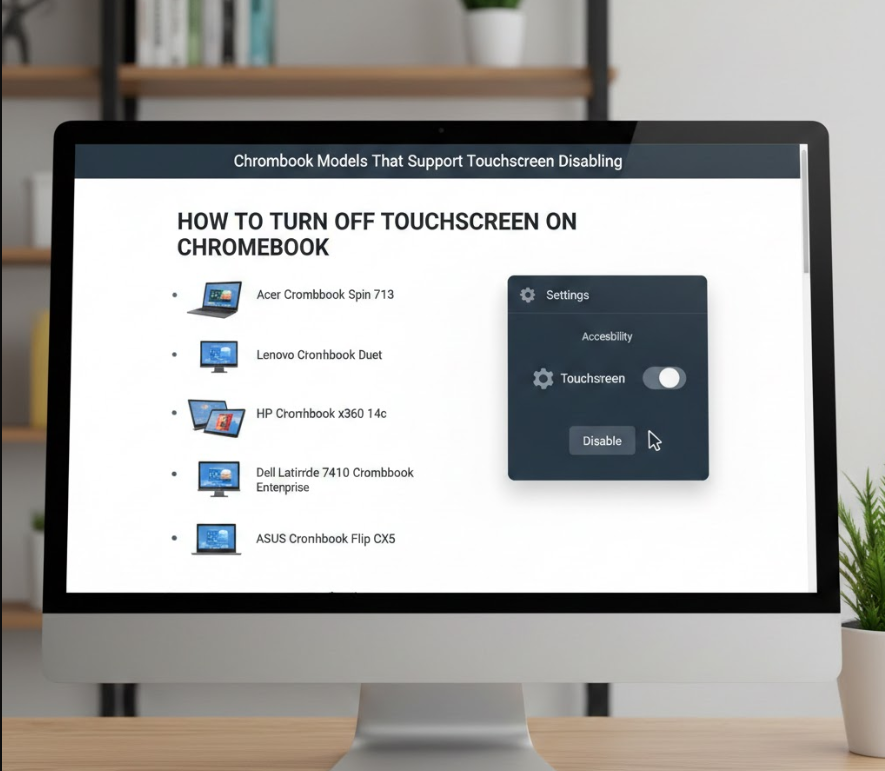
Not all Chromebooks behave the same way.
Detailed Explanation
Touchscreen support and shortcuts vary by manufacturer and ChromeOS version.
• Popular Supported Models
Acer Chromebook Spin, HP Chromebook x360, Lenovo Chromebook Flex.
• ChromeOS Version Matters
Newer versions support more shortcuts.
• School-Issued Chromebooks
May have restrictions set by administrators.
• Enterprise Policies
IT admins can disable touchscreen input centrally.
• Hardware Differences
Some screens integrate touch more deeply.
• Check Manufacturer Documentation
Confirms compatibility.
Also Read This:- How to Breed Villagers in Minecraft: Complete 2026 Guide
Troubleshooting When Touchscreen Won’t Turn Off
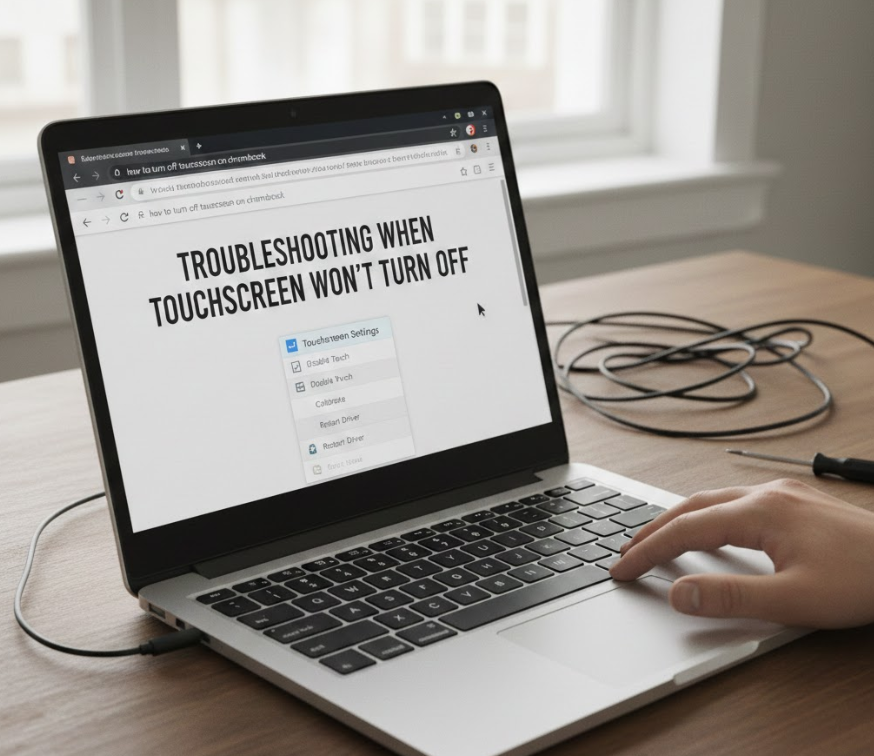
Sometimes touchscreen disabling doesn’t work as expected.
Detailed Explanation
Understanding common issues helps resolve them quickly.
• Shortcut Not Working
Accessibility shortcuts may be disabled.
• ChromeOS Update Reset
Flags and shortcuts may reset after updates.
• Admin Restrictions
Managed devices may block changes.
• Hardware Faults
Physical issues may override software control.
• Restart Required
Some methods need reboot.
• Factory Reset as Last Resort
Only if all else fails.
Also Read This:- How to Tame a Silver Fox: A Complete Guide
Benefits of Disabling Touchscreen on Chromebook
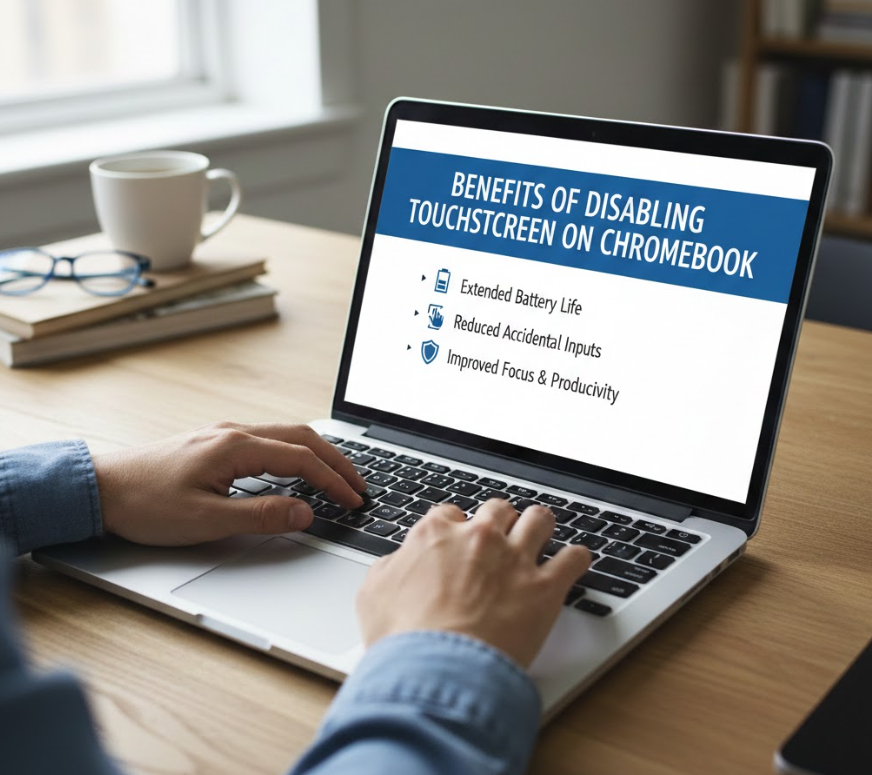
Turning off touchscreen can improve usability.
Detailed Explanation
Users often report better performance and comfort.
• Improved Typing Accuracy
No accidental cursor jumps.
• Reduced Screen Smudges
Cleaner display.
• Enhanced Focus
Fewer distractions.
• Better Battery Life
Slight efficiency improvement.
• Professional Workflow
Ideal for desk setups.
• Longer Hardware Lifespan
Reduced wear on digitizer.
Conclusion
Understanding how to turn off touchscreen on Chromebook empowers users to customize their devices for productivity, comfort, and control. Whether you use a simple keyboard shortcut, Chrome flags, accessibility settings, or Developer Mode, ChromeOS provides multiple safe paths to disable touchscreen input.
The best method depends on your experience level and how permanent you want the change to be. For most users, the keyboard shortcut is the safest and fastest option. Advanced users can explore deeper system controls when needed.
By choosing the right approach, you can eliminate distractions, prevent accidental input, and enjoy a smoother Chromebook experience.
FAQs
Can I permanently turn off the touchscreen on Chromebook?
Yes, using Developer Mode or enterprise policies.
Does disabling touchscreen damage my Chromebook?
No, all methods are software-based and reversible.
Will updates re-enable touchscreen?
Shortcuts may persist; flags and Developer Mode settings may reset.
Is touchscreen disabling available on school Chromebooks?
Only if admin permissions allow it.
More Information Go And Visit:- Wiki Magazines