
 wikimagazines@gmail.com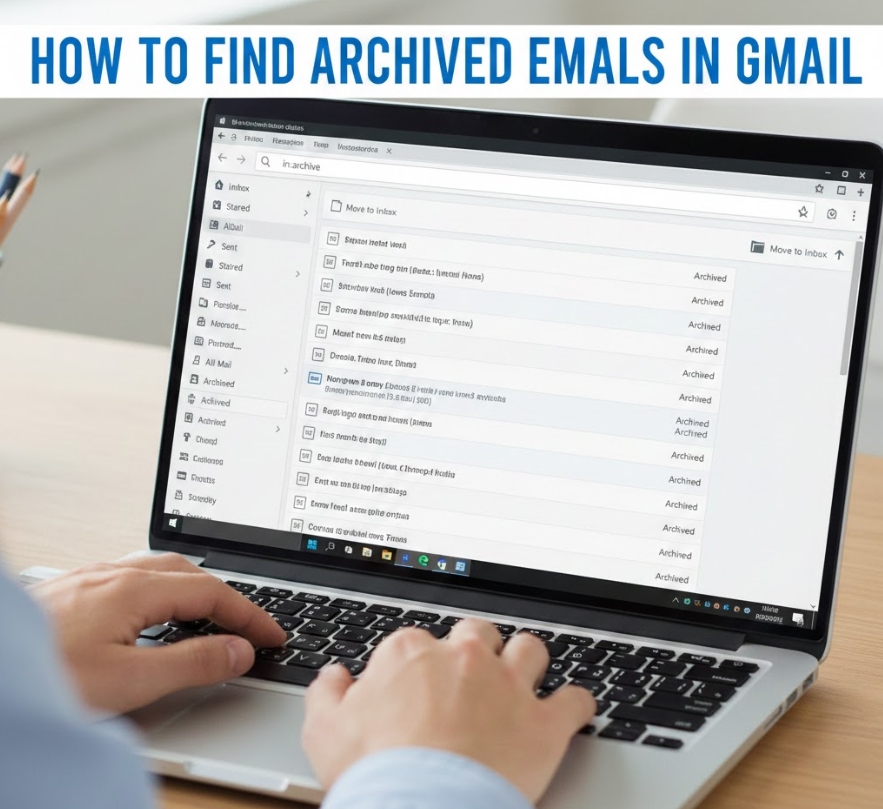
In today’s digital age, managing your Gmail account efficiently is essential. Archiving emails is a great way to declutter your inbox without deleting important messages. But once archived, finding them can sometimes be confusing. If you’re wondering how to find archived emails in Gmail, this comprehensive guide will walk you through every platform, from Android and iPhone to desktop browsers, ensuring you never lose track of your messages.
How to Find Archived Emails in Gmail App

Finding archived emails in the Gmail app can be straightforward once you understand Gmail’s labeling system. Unlike deleted emails, archived emails aren’t placed in the Trash—they are simply removed from the Inbox but remain searchable. Knowing how to navigate the Gmail app can help you quickly access these messages.
• Use the Search Bar: The most reliable way to find archived emails is by typing keywords, sender names, or subject lines in the Gmail search bar. Gmail indexes all emails, including archived ones, allowing precise retrieval.
• Check the All Mail Folder: All archived emails reside in the “All Mail” folder. Accessing this folder through the menu displays all messages, including archived emails, making them easier to browse.
• Use Filters: Gmail’s filter options allow you to search emails by date, sender, or label. Filters streamline the search process, particularly if you have a large volume of archived messages.
• Search by Labels: If you’ve applied labels to emails before archiving, searching using those labels can speed up retrieval. Labels act as organizational markers for faster access.
• Include Keywords: When searching, include precise words or phrases from the email body or subject. This approach narrows results and saves time.
• Access via Gmail Help: Gmail’s in-app help provides step-by-step instructions and troubleshooting tips if the email seems to be missing.
Also Read This:- How to Endorse a Check: Complete Guide for 2026
How to Find Archived Emails in Gmail on Android
Finding archived emails on Android devices involves navigating the mobile Gmail interface effectively. Gmail’s Android app provides intuitive options to locate archived messages without requiring a desktop.
• Open Gmail App: Launch the Gmail app and tap the menu icon to access different folders. This ensures you can navigate directly to archived messages.
• Tap “All Mail”: The “All Mail” folder stores all archived emails. Browsing this folder on Android allows quick access to messages removed from the Inbox.
• Use Search Function: Enter keywords or email addresses in the search bar to locate specific archived emails. Android search capabilities make retrieval efficient.
• Filter by Labels: Apply labels to narrow your search. Android’s Gmail app supports label-based searches for precise results.
• Sort by Date: If you remember the approximate time of receipt, sorting by date helps locate archived emails faster.
• Sync Account: Ensure your Gmail account is synced on Android. Unsynced accounts might not display all archived emails.
Also Read This:- How to Create a Drop Down List in Excel: Step-by-Step Guide for Every Version
How to Find Archived Emails in Gmail on iPhone
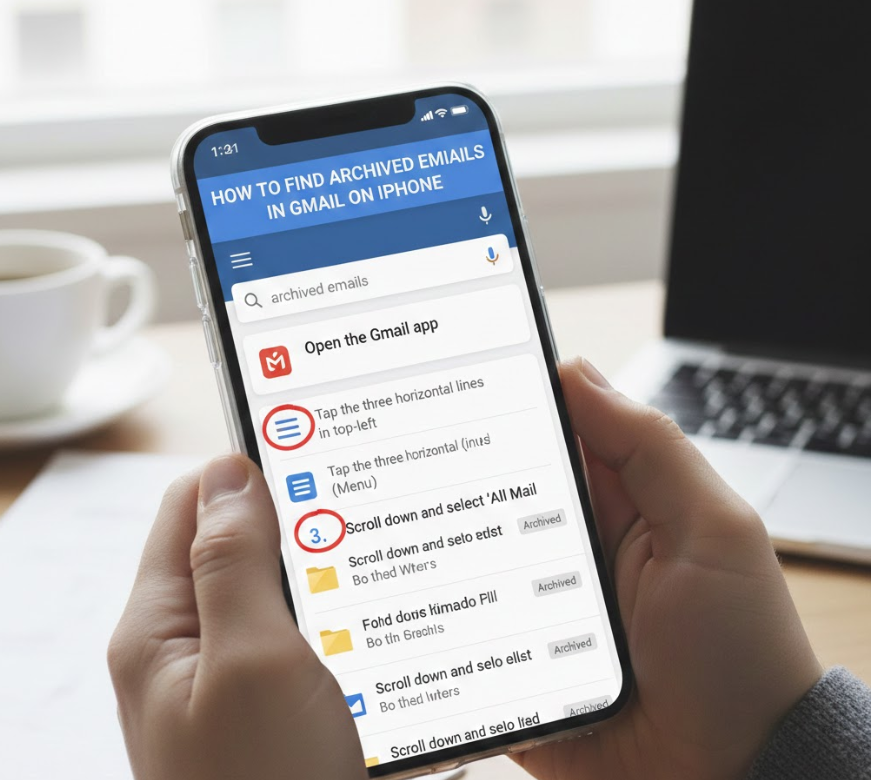
On an iPhone, locating archived emails in Gmail requires understanding the app’s layout. The mobile interface differs slightly from Android, so following the correct steps ensures smooth access.
• Open Gmail App: Launch Gmail on your iPhone and log in to your account to access your emails.
• Select Menu Icon: Tap the hamburger menu to view Gmail folders, including “All Mail,” where archived messages are stored.
• Use Search Bar: Type keywords, sender details, or subjects to locate archived emails quickly.
• Check Labels: If you used labels before archiving, search by label for faster retrieval.
• Sort Emails: Utilize date filters to pinpoint messages from a specific timeframe.
• Enable Push Notifications: This ensures that newly archived messages are immediately visible and accessible.
Also Read This:- How to Descale a Keurig: The Complete Step-by-Step Guide for Every Model
How to Find Archived Emails in Gmail on Computer
Accessing archived emails on a desktop browser provides full Gmail functionality, making it easier to manage large volumes of emails. Desktop search tools are more precise and allow advanced filtering.
• Open Gmail in Browser: Navigate to Gmail.com and sign in to access your account.
• Click “All Mail”: Locate archived emails under the “All Mail” folder. Desktop browsers provide complete folder visibility.
• Use Search Operators: Gmail supports advanced search operators, such as “in:all” or “from:email@example.com,” for pinpoint accuracy.
• Apply Filters: Desktop Gmail allows detailed filters by date, attachment presence, and label, facilitating precise search.
• Check Spam and Trash: Occasionally, archived emails may be misfiled; reviewing these folders ensures nothing is missed.
• Save Searches: For recurring queries, save searches for faster future access.
Also Read This:- How to Cut a Pomegranate: The Complete Step-by-Step Guide for Perfect Seeds Every Time
How to Find Archived Emails in Gmail on Phone

Finding archived emails on any mobile phone, whether Android or iPhone, requires understanding Gmail’s mobile navigation. Proper use of folders and search functions ensures efficient retrieval.
• Open Gmail App: Access your Gmail account through the mobile app to view all messages.
• Tap Menu: Use the menu icon to locate folders including “All Mail,” which contains archived emails.
• Search Using Keywords: Enter relevant terms in the search bar to locate archived messages.
• Use Labels: If labels were applied before archiving, search by labels for precise results.
• Scroll Chronologically: Browsing messages by date helps if you remember the approximate email period.
• Enable Sync: Ensure your Gmail app is synced to display the latest emails, including archived ones.
Also Read This:- How to Breed Villagers in Minecraft: Complete 2026 Guide
How to Find Archived Emails in Gmail App Android
The Gmail Android app is optimized for mobile use, allowing users to access archived emails with ease. Understanding app features ensures efficient navigation.
• Launch App: Open Gmail on Android and log in to your account.
• Access All Mail Folder: Tap the menu icon to select “All Mail,” where all archived emails are stored.
• Search Bar Usage: Enter email addresses, keywords, or subjects for quick retrieval.
• Filter by Labels: Narrow down results by using preassigned labels to archived emails.
• Sort by Date or Sender: Helps locate emails faster, particularly in large accounts.
• Check Sync Status: Ensure the app is synced with your account to display the latest messages.
Also Read This:- How to Tame a Silver Fox: A Complete Guide
How to Find Archived Emails in Gmail App on iPhone

Locating archived emails in Gmail on an iPhone follows similar principles but requires attention to iOS-specific navigation.
• Open Gmail App: Launch Gmail and ensure you’re logged in.
• Select Menu: Tap the menu icon to access all folders.
• All Mail Folder: All archived emails are stored here, separate from the Inbox.
• Use Search Feature: Input sender names, subject, or keywords to locate messages.
• Sort and Filter Emails: Organize emails by date or labels to quickly find archived messages.
• Check Sync and Notifications: Ensure account sync is enabled so that all emails appear in the app.
Also Read This:- How to Attract Birds: A Complete Guide to Bringing More Birds to Your Yard, Feeders, and Garden
How to Find Archived Emails in Gmail Mobile App
The Gmail mobile app, across devices, provides unified access to all emails, including archived ones. Efficient use of search and labels maximizes productivity.
• Open Mobile App: Access Gmail via Android or iPhone.
• Tap Menu Icon: Navigate to “All Mail” to view archived messages.
• Use Search Functionality: Search using specific terms or email addresses.
• Apply Labels for Filters: Labels improve search accuracy and speed.
• Sort by Date or Sender: Helps locate emails efficiently.
• Ensure Mobile Sync: Without syncing, some archived emails may not display.
Also Read This:- How to Change a Tire: A Complete Step-by-Step Guide for Every Vehicle
How to Find Archived Emails in Gmail on Desktop
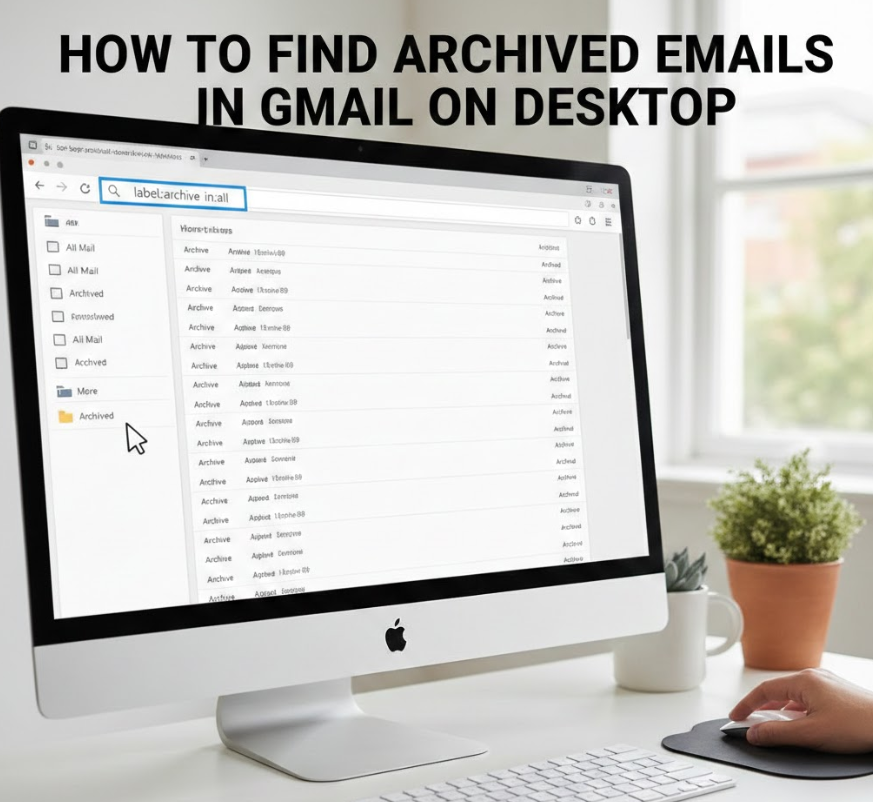
Desktop Gmail provides complete tools for managing and locating archived emails. The larger interface allows advanced features not available on mobile.
• Open Gmail Website: Log in at Gmail.com.
• Navigate to All Mail Folder: All archived emails reside in this folder.
• Use Advanced Search Operators: Include “in:all” or “has:attachment” for precise searches.
• Apply Filters: Filter by sender, label, or date to quickly locate messages.
• Check Labels and Categories: Misfiled emails may reside under categories such as Social or Promotions.
• Save Frequent Searches: Desktop allows saving search queries for repetitive use.
Also Read This:- Interior Design Trends: Transform Your Home with Style and Innovation
How to Find Archived Emails in Gmail 2019
Earlier Gmail versions, such as in 2019, have slightly different navigation but the principles remain consistent.
• Open Gmail in Browser or App: Access your account as usual.
• Locate All Mail Folder: All archived messages are stored here, even in older interfaces.
• Use Search Function: Enter keywords or sender names to locate emails.
• Apply Filters or Labels: Older versions support basic filters and labels for organization.
• Check Categories: Emails may appear in Social or Promotions tabs.
• Sync Account: Ensure proper syncing to display all archived emails from older periods.
Also Read This:- Virtual Meeting Etiquette: The Complete Guide for Professionals
How to Find Archived Emails in Gmail Mobile

Finding archived emails via mobile devices, regardless of OS, requires understanding Gmail’s mobile navigation and search functions.
• Open Gmail App: Access Gmail on Android or iPhone.
• Select Menu: Navigate to “All Mail” for archived emails.
• Use Search Function: Input sender, subject, or keyword to locate messages.
• Filter by Labels: Labels improve search efficiency.
• Sort Chronologically: Helps locate older emails.
• Ensure Sync Enabled: Mobile sync ensures all archived emails appear.
Also Read This:- Art Projects for Kids: A Comprehensive Guide to Creative Learning
How to Find Archived Emails in Gmail on Samsung
Samsung devices run Android, so Gmail navigation is similar, but device-specific interface tweaks exist.
• Open Gmail App: Launch app on Samsung device.
• Tap Menu Icon: Access “All Mail” for archived emails.
• Search Bar Usage: Enter keywords, email addresses, or subjects.
• Apply Filters: Filters by label or date improve search accuracy.
• Scroll Chronologically: Helps locate emails quickly if search is not precise.
• Check Sync Settings: Ensure Gmail account is synced for full visibility.
Also Read This:- Shop Disco Cowboy Hat: The Ultimate Guide to Retro Western Style
How to Find Archived Emails in Gmail Android
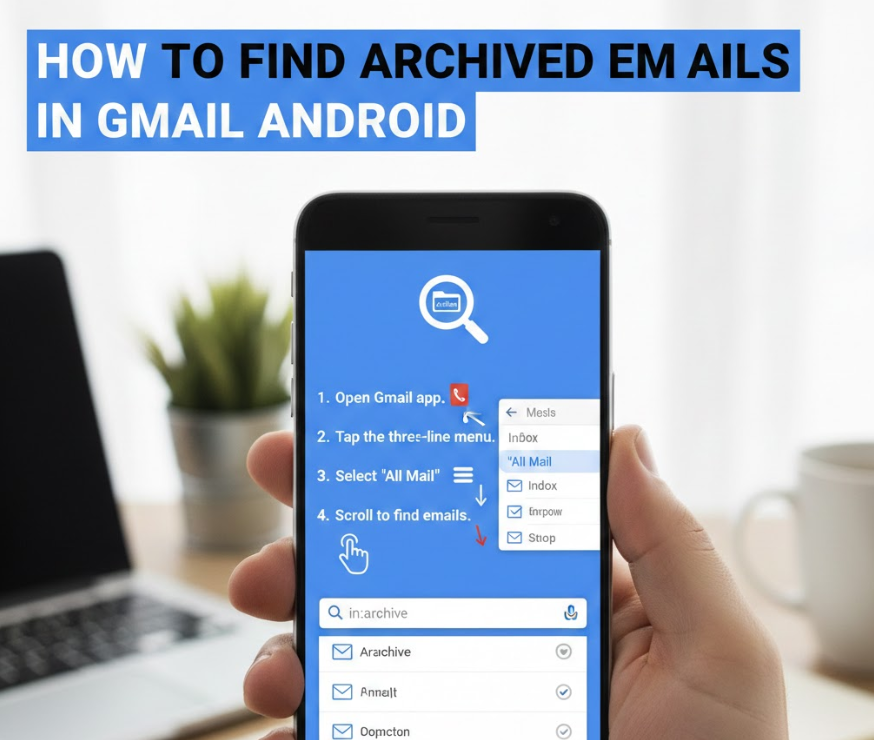
Android Gmail apps provide direct access to archived emails via the “All Mail” folder and search features.
• Launch Gmail App: Open Gmail and log in.
• Access Menu: Navigate to “All Mail” for archived emails.
• Use Search Bar: Keywords, subjects, or senders help locate messages.
• Filter by Labels: Applied labels make searching faster.
• Sort by Date: Sorting helps find emails by timeframe.
• Verify Sync Status: Account syncing ensures all messages display.
Also Read This:- How to Catch All Stormfish in Sea of Thieves MGRGameTron Guide
How to Find Archived Emails in Gmail iPhone

iPhone Gmail users can locate archived emails using the app’s menu and search functions.
• Open Gmail App: Ensure logged into your Gmail account.
• Tap Menu Icon: Access folders including “All Mail.”
• Use Search Function: Search by sender, subject, or keyword.
• Apply Labels: Labels allow faster identification of archived emails.
• Sort Emails: Organize by date or sender for easier access.
• Enable Account Sync: Ensures visibility of all archived messages.
Also Read This:- How to Buy Ren Faire Tickets at King Soopers: A Complete Step-by-Step Guide
How to Find Archived Emails in Gmail App iPhone
For iPhone Gmail apps, retrieving archived emails relies on correct folder navigation and search usage.
• Launch Gmail App: Open the app and log in.
• Select Menu Icon: Access “All Mail” where archived messages reside.
• Use Search Bar: Input specific keywords, email addresses, or subjects.
• Apply Filters or Labels: Helps narrow down search results.
• Sort Emails Chronologically: Organize messages to locate older emails easily.
• Verify Sync Settings: Ensure Gmail sync is active for complete visibility.
Conclusion
Finding archived emails in Gmail is straightforward once you understand Gmail’s folder structure and search tools. Whether you’re using Android, iPhone, desktop, or mobile apps, archived emails remain accessible in the All Mail folder and are fully searchable. Using filters, labels, and precise search operators enhances retrieval efficiency. Always ensure your Gmail account is synced to access the latest messages, and apply labels for better organization.
FAQs
Q1: Where do archived emails go in Gmail?
They are moved to the All Mail folder and are not deleted.
Q2: Can I search archived emails by label?
Yes, applying labels before archiving allows precise search.
Q3: Are archived emails recoverable?
Yes, all archived emails remain fully accessible and searchable.
Q4: Can I archive emails on mobile?
Yes, Gmail mobile apps allow archiving via swipe or menu options.
More Information Go And Visit:- Wiki Magazines